 Hexcrown
How to play Hexcrown
This guide takes you step by step through your first game – from the start screen through your first moves all the way to victory. If you already know the basics, you will find all the numbers on the page Units & mechanics and tactical tips in the strategy guide. If a term is unclear, the glossary explains it.
1. Starting a game
On the start screen you choose three things before the game begins:
- Map size – "Small", "Medium" or "Large". Small maps end faster because the empires meet early; large maps leave more room to build up.
- AI opponents – one, two or three computer opponents.
- Difficulty – "Easy", "Medium" or "Hard". Above all, the levels differ in how the opponents behave: on "Easy" they attack late and one at a time and make more mistakes, on "Hard" they plan several attacks at once, make no mistakes and raise larger armies.
- Commander – one of nine generals with a permanent advantage and a special ability, or "None". See Commanders.
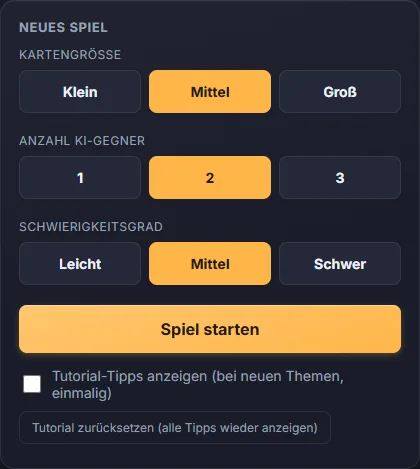
Below that you can switch on the tutorial tips. They appear once during the game, the first time you come across a new topic – such as your first city or your first battle. For your very first game we recommend: small map, one opponent, "Easy", tutorial on.
At the bottom of the start screen you will also find the campaign with eleven chapters and its own story, and your achievements & records.
2. The game screen
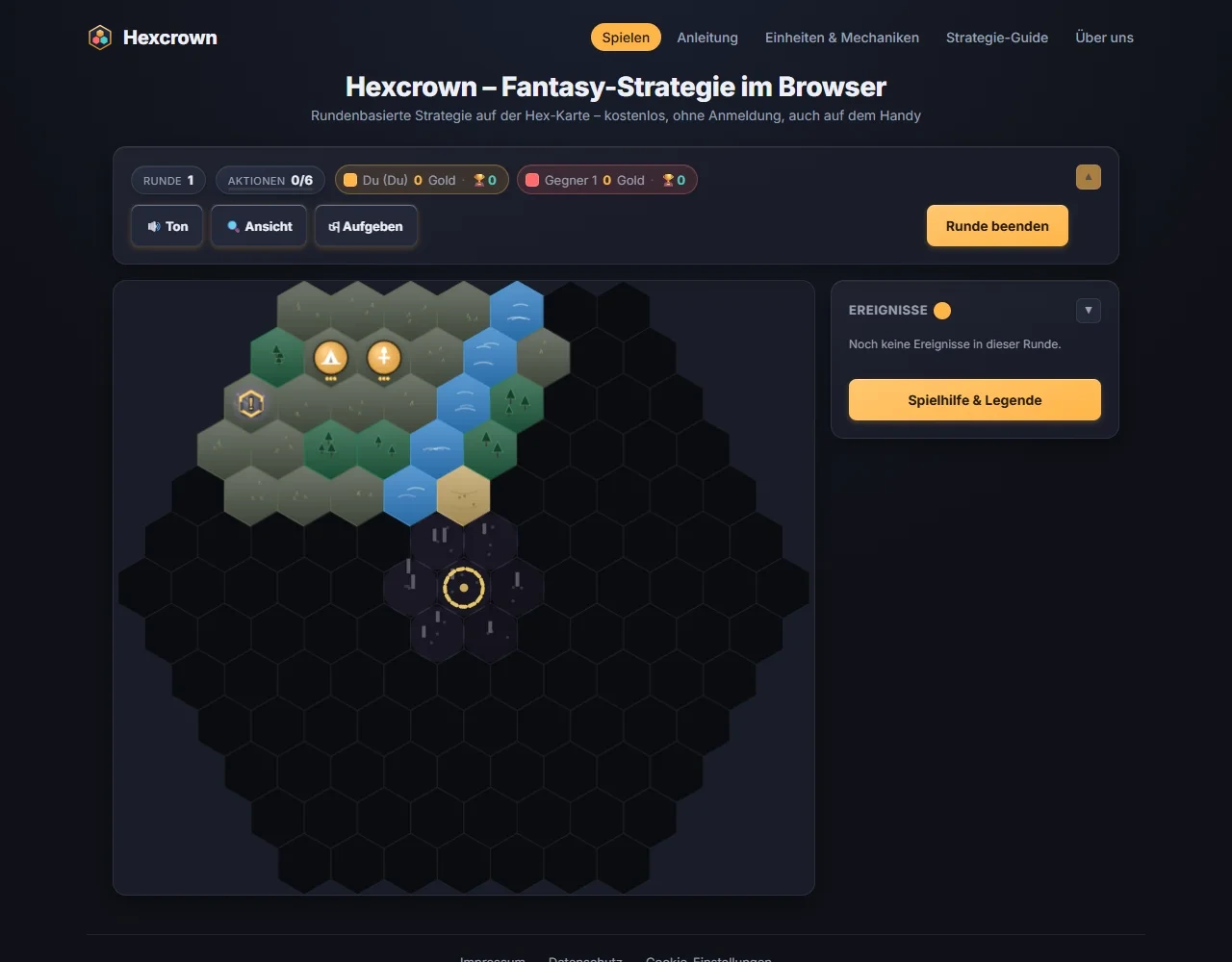
The screen has three areas:
- Turn bar (top): current turn, actions used, gold and victory points of all players (the trophy icon) and the buttons "Sound", "View" (reset the map), "Surrender" and – most importantly – "End turn". If you play with a commander, the button for their special ability is here too, showing when it is ready again. The small arrow on the right collapses or expands the bar.
- Map (left): Every hexagon is a field with a terrain type. Above the map, two info boxes show the terrain and the unit on the field you tapped last. The golden circle in the middle is the control point, which will matter later on.
- Sidebar (right): This is where the actions for the selected unit or city appear, below that the event log with everything that happened during the turn, and the "Help & legend" button with a short overview of all the rules. In a campaign chapter, the "Tasks" box with your goal appears at the very top.
3. Turns and actions
Hexcrown is played in turns. During your turn you move units, attack, found cities or train new troops. Two limits apply:
- At most 6 actions per turn (7 on a medium map, 8 on a large one) – moving, attacking, founding or capturing a city, training, constructing buildings, fortifying, boarding a boat, building a watchtower and using your commander's ability all count. The bar at the top shows how many you have used.
- Each unit acts once per turn – it either moves or attacks.
When you are done, press "End turn". All AI opponents then make their moves, you receive your income and a new turn begins. By the way, the same limits apply to the computer opponents.
You can follow your opponents' moves: their units move one after another, as far as your units and cities can see them. Whatever happens in the fog stays hidden. Don't feel like waiting? "Skip" at the top takes you straight to your next turn.
4. Moving units
Tap one of your units. All fields it can reach this turn are outlined in turquoise. Tapping one of these fields moves the unit there. Tapping the unit again cancels the selection.
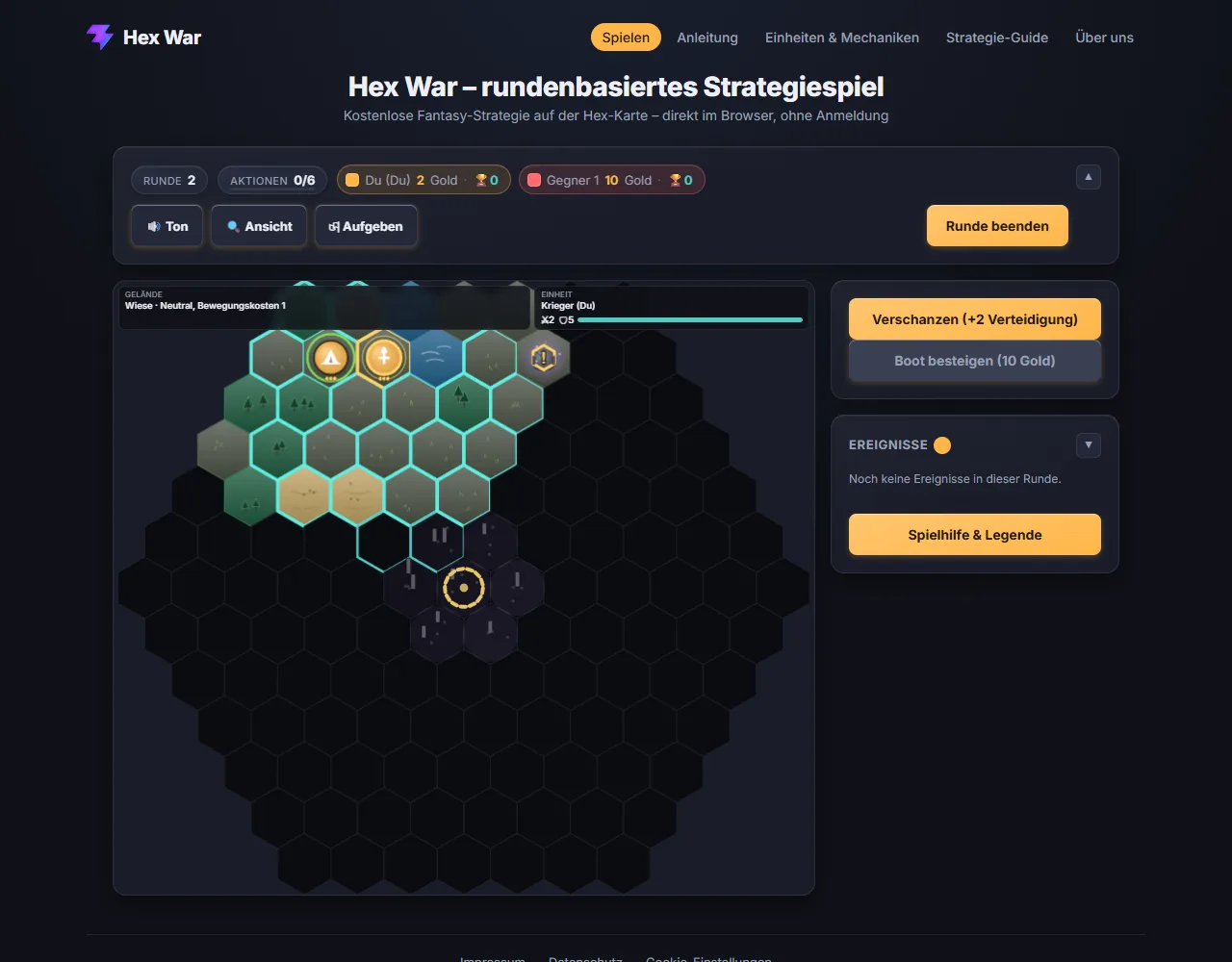
How far a unit can go depends on three things:
- March or combat: Away from enemies, a unit marches with its large travel range. If an enemy is nearby, only the smaller tactical movement applies. A rider covers 6 fields in open country, but only 3 in combat.
- Terrain: Meadows cost 1 movement point, forests, mountains and deserts cost 2. Water and rivers cannot be crossed without a boat.
- Obstacles: Other units, watchtowers and ruins block the way.
Boat: A unit standing on a shore can board a boat for 10 gold. Water then costs only 1 movement point per field. On the other shore the boat is left automatically.
5. Founding your first city
At the start you have a settler and a warrior, but no city yet. Select the settler and press "Found city" in the sidebar. The settler turns into a city. There must always be at least one free field between two cities, and no city can be built on water.
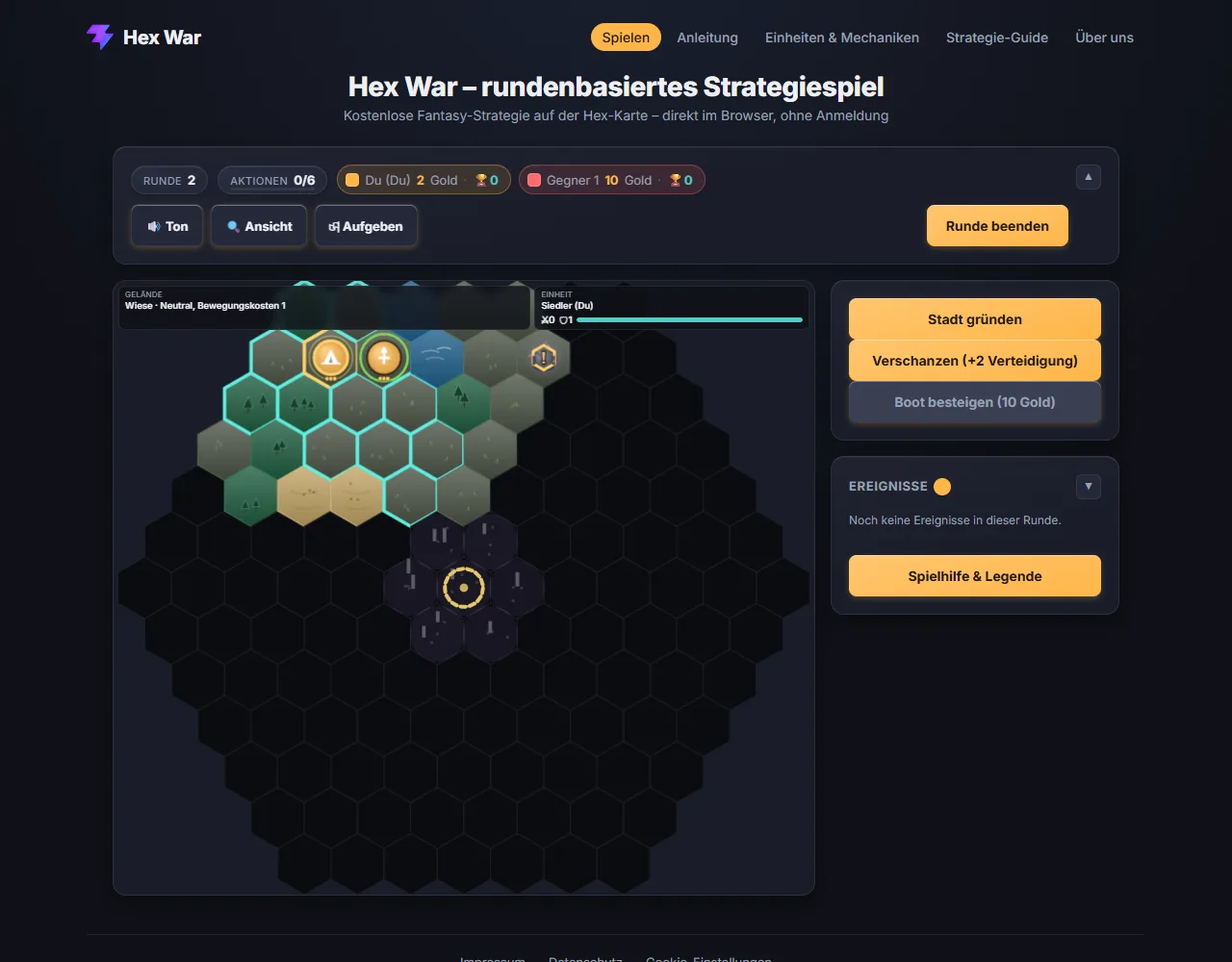
Your first city is free. For every further city you need a new settler, which you train in a city: the settler for the second city costs 30 gold, and each one after that costs 15 gold more (45 gold for the third city, 60 for the fourth and so on).
6. Earning gold and training units
At the end of each turn you receive 2 gold of base income plus 8 gold for each of your cities. With two cities you already earn 18 gold per turn. You spend gold on new units: tap one of your cities and open "Train units" in the sidebar.
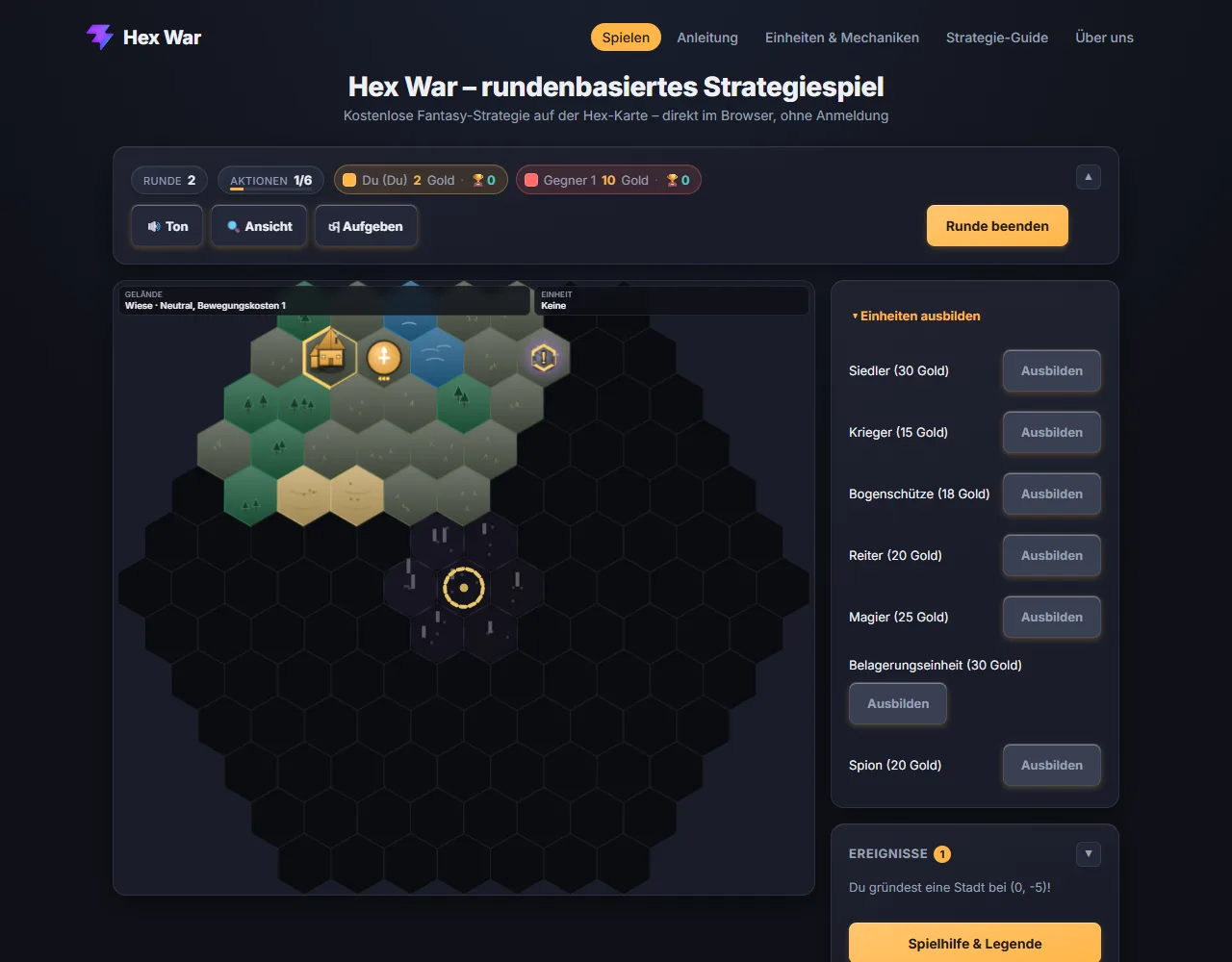
The new unit appears right on the city field. If a unit is already standing there, you must move it away first. The page Units & mechanics explains which unit is good for what. In short: warriors defend, archers and mages attack, riders are fast, siege engines crack cities and spies scout.
7. Developing cities
Every city can be strengthened with buildings. Select one of your cities and open "Develop city" in the sidebar. A building costs gold and 1 action and is finished after a few turns:
| Building | Cost | Turns | Effect |
|---|---|---|---|
| City wall | 50 | 3 | +3 defense for the unit inside the city (on top of the city bonus of +5) |
| Market | 30 | 2 | +2 gold per turn |
| Barracks | 30 | 2 | Units trained in this city cost 2 gold less (not settlers) |
| Hospital | 30 | 2 | Your units on and right next to the city heal 1 hit point per turn |
- One construction at a time: each city can only build one building at a time.
- Building slots: a new city has 1 slot, a second one is added after 10 turns and a third after 20. That is the maximum – so you have to decide which three of the four buildings a city gets.
- Capture: when a city falls, the damage to each building is rolled (0, 25, 50, 75 or 100 %). Damaged buildings only work again after a repair – the bigger the damage, the more expensive and longer it takes.
Rule of thumb: the expensive city wall goes into the border city the enemy reaches first, the market into the safe hinterland and the hospital where the fighting is – damaged units heal there.
8. Attacking and defending
To attack, select one of your units and tap an enemy unit within range. The attack range equals the unit's tactical movement – an archer can therefore attack targets up to 4 fields away. As soon as a unit is selected, the sidebar shows a preview of the attackable targets with your advantage or disadvantage.
This is how a battle is decided:
- The attacker's attack value is compared with the defender's defense value.
- If the attack is higher, the attacker wins – on a tie or less, the defender wins.
- The loser loses one of three hit points. Only at zero hit points is the unit defeated.
Both values get bonuses, which often tip the balance:
- Terrain: Forests and mountains give the defender +1, attacking from a mountain gives +1.
- Fortify: +2 defense (not inside a city – the city already protects it – and not on the control point). In return, a fortified unit can only attack adjacent fields.
- Support: Your own units right next to the contested field help their side – up to +4 in total. A unit defending inside a city gets no support.
- Cities: A unit defending inside a city gets +5, plus another +3 with a built city wall.
- Experience: Every two battles won make a unit permanently +1 stronger, up to three times.
You do not need to attack an unguarded enemy city: simply move a unit into it and capture it.
9. Fog of war
You only see the fields within sight of your units, cities and watchtowers (usually 3 fields). Fields you have already explored stay visible, but you only see enemy units on them when one of your units is nearby again. You can only attack what you can see – the only exception is the mage, who can also hit targets in the fog. Enemy spies are almost invisible and only show up when one of your units stands right next to them.
10. How to win
There are two ways to win:
- Conquest victory: You own every city on the map.
-
Victory points: You are the first to collect 20 victory points.
Points are awarded for:
- the control point in the middle of the map, if you keep it occupied with a unit for 10 turns in a row: +5 (the counter then starts over)
- each captured enemy city: +3
- each defeated ruin guardian: +2
There is no turn limit – the game goes on until someone achieves one of the two. At the end you see a short summary with battles won, cities captured and units lost.
After that you can watch the replay: the whole game runs turn by turn in fast motion, including every player's victory points and cities. Finally you get to see what your opponents were up to in the fog.
11. Commanders
Before each game you choose a commander on the start screen – or play with "None". Each of the nine commanders brings two things:
- A permanent advantage that lasts the whole game – for example cheaper riders, more gold or stronger fortification.
- A special ability that you trigger with the button at the top of the turn bar. It can be used from turn 5, costs 1 action and then needs 8 to 12 turns to recharge.
Every AI opponent also has a random commander – its symbol is shown at the top next to its gold. Each commander appears at most once per game. You will find all commanders with their exact values under Units & mechanics. The Commanders page introduces each one in detail.
12. The campaign "The Broken Realm"
The old king is dead, and his generals have scattered to the four winds. As the youngest of four princes, you set out to win them over and take the throne. Open the campaign with "Campaign" on the start screen.
- Eleven chapters in three acts and a finale – on an overview map with branching paths. Not every chapter is required: in the second act, for example, three out of five are enough.
- Every chapter has its own goal, such as capturing a fortress, surviving a siege for 15 turns or being the first to defeat four ruins. The "Tasks" box on the right in the game shows what to do.
- Win commanders: when you complete a chapter, its commander joins you. In the finale "The Throne" you choose freely from all the commanders you have won.
- Your progress is saved in your browser. Campaign games do not count towards the normal achievements and records.
All chapters, acts and tips for the campaign are on the Campaign page.
13. Achievements and records
You earn achievements for special accomplishments – 32 of them in five groups: First steps, Combat, Strategy, Victories and Endurance. The game also keeps your records: games played and won (by difficulty), your fastest victory per map size, the most cities captured and victory points in one game and much more. Open both with "Achievements & records" on the start screen. Everything is saved only in your browser. Every achievement with its condition and how to earn it is on Achievements & records.
14. Playing on a phone
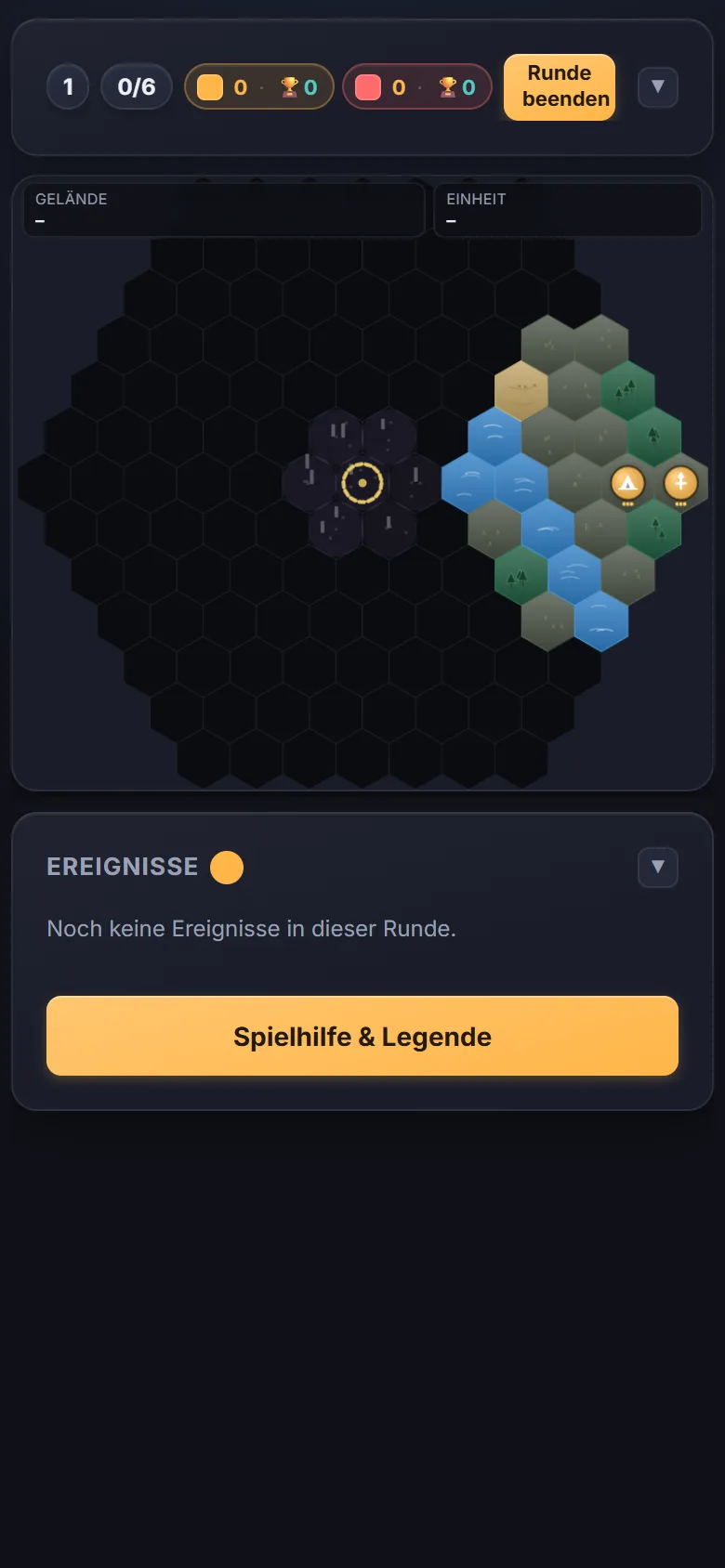
On a smartphone the interface adapts automatically. When collapsed, the turn bar only shows numbers and colors, so the map gets as much space as possible. The controls:
- A short tap selects a field, a unit or a city.
- Dragging with one finger moves the map.
- Two fingers zoom in and out.
- "View" in the expanded turn bar resets the zoom.
Playing with the keyboard
Hexcrown can also be played without a mouse. Press the Tab key to reach the map (a frame and a white hexagon cursor show where you are). Then:
- Arrow keys or Q W E A S D move the cursor to a neighbouring field. With Q W E A S D the keys sit like the neighbours: Q top left, W top right, E right, A left, S bottom left, D bottom right. Arrow up and down zigzag.
- Enter or Space work like a click on the field under the cursor: select a unit or city, move, attack, capture.
- N jumps to the next unit of yours that can still act, Shift+N to the previous one.
- Escape clears the selection.
- Shift+R ends the turn.
- H or ? opens the help with this list of keys.
Tab leaves the map again; the buttons of the turn bar and the actions panel can also be reached with Tab and used with Enter. While the opponents take their turns the keyboard is locked, just like the mouse. A screen reader announces terrain, unit and city while you move the cursor, but only what you are allowed to see. All keys, touch gestures and help with problems are on the Controls page.
15. Saving, continuing and surrendering
After every turn your game is saved automatically in your browser. When you open the page again later, the start screen shows a "Continue" button. The saved game only exists on your device – it is not available on another device or after deleting your browser data.
If you want to start over, end the game with "Surrender" in the turn bar and then start a new game. How to back up your progress and move it to another device is described under Game modes & settings.

16. Map code and daily challenge
Every game has a map code of twelve characters, for example
XXXX-XXXX-XXXX. It fixes the map, starting positions, ruins, map size,
number of opponents and difficulty. On the start screen you can enter a code; if the
field stays empty you get a random map. During the game and at its end you find the
game's code under "Map code" with the buttons "Copy" and "Share
link". A shared link only fills in the field on the start screen – nothing starts
until you click "Start game", and a saved game stays untouched. Everyone picks their
own commander. A code only works with the same game version; codes from another
version are rejected with a message.
The daily challenge is a fixed game that is the same for all players on any given day (medium map, two opponents, difficulty "Medium"; the day changes at 0:00 UTC). The first finished attempt of a day counts for your score, further attempts are practice. A win scores 1000 points minus 5 per round (at least 100), a defeat scores 0 points but still counts as taking part for your streak (days in a row). Under "My results" you see your last days and your bests. Everything stays saved on your device. More on the modes and settings is on Game modes & settings, how maps are made on The map.